- Shell 100%
| DATA | ||
| .gitignore | ||
| _config.yml | ||
| ARCHIVED-README.md | ||
| CHANGELOG.md | ||
| optimize_mac_office.sh | ||
| README.md | ||

🖥️ Installer for Microsoft Office for macOS

Your ultimate resource for macOS Office installers, serializers, and troubleshooting.









If you find this project helpful and would like to support it, please consider donating via PayPal. Thank you!
Jika Anda merasa terbantu dan ingin mendukung proyek ini, pertimbangkan untuk berdonasi melalui PayPal. Terima kasih atas dukungannya!
📑 Table of Contents
- Stargazers Over Time
- System Compatibility Overview
- Update History
- Installation Steps
- Office Suite Installers
- Office Serializers
- Privacy & Optimization
- Troubleshooting & Tutorials
- Microsoft Office Mac Tools
- Credits
- GitHub Stats
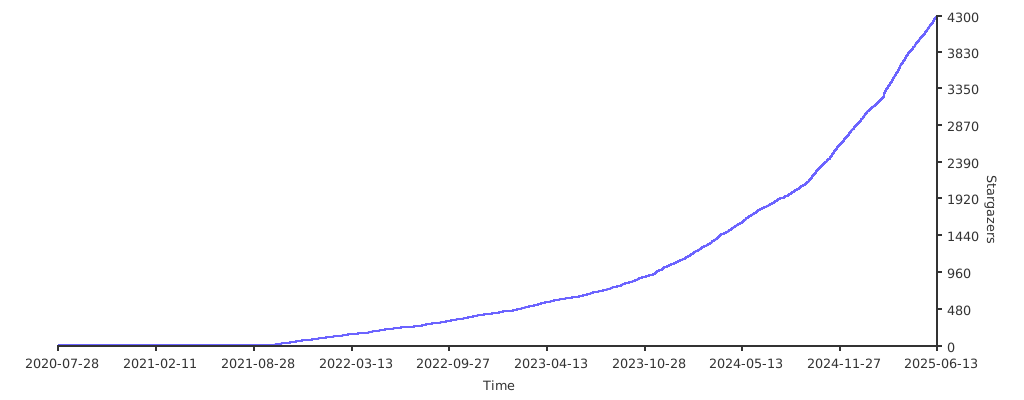
Stargazers Over Time
System Compatibility Overview
| macOS Version | Supported Office Products |
|---|---|
| macOS 14 (Sonoma) | Not explicitly mentioned in the releases. Office LTSC 2021/2024 and newer tools (designed for macOS 13 Ventura) are expected to work on macOS 14, but please check the official documentation. |
| macOS 13 (Ventura) | Required for the latest Office LTSC 2021/2024 Suite Installer and its corresponding serializers—with native support for Apple Silicon (M1/M1 Pro/M1 Max/M1 Ultra/M2/M2 Pro/M2 Max/M2 Ultra/M3/M3 Pro/M3 Max/M3 Ultra/macOS Sequoia). |
| macOS 12 (Monterey) | Some Office 2019/LTSC installers are built to support Monterey. Look for versions that specify “Monterey” (e.g., minimum 12.0.x or maximum 12.7.6). |
| macOS 11 (Big Sur) | Certain Office 2019 builds and updates are limited to Big Sur. |
| Older macOS Versions | Office releases for Catalina (10.15), Mojave (10.14), High Sierra (10.13), Yosemite (10.10), and Snow Leopard (10.6) are available for legacy systems. |
Update history for Office for Mac
Stay informed about the latest updates from Microsoft by visiting the official documentation: 🔗 Update history for Office for Mac
Steps
Follow these simple steps to install and activate your desired Office version:
- Download Serializer: Get
Microsoft_Office_LTSC_2021_VL_Serializer.pkgorMicrosoft_Office_LTSC_2024_VL_Serializer.pkgdepending on your targeted version. - Install Volume License pkg: Run the Serializer pkg installer to apply the volume license.
- Download Installer: Choose and download the Office Installer package from the tables below.
- Install Office Apps: Run the Office pkg installer you just downloaded.
- Ready! All your Office apps are now installed and activated.
Note
If you already installed the VL pkg (or installed it before), you just need to install the office update packages.
Office Suite Installers
| Product | Version (Build) | Supported macOS | Download Link |
|---|---|---|---|
| Office LTSC 2021/2024 Suite Installer | 16.110.1 (26062112) | Minimum macOS 14 (Sonoma) and above | Download |
| Microsoft AutoUpdate (MAU) Installer | 4.83.0 | Minimum macOS 10.14 (Mojave) and above | Download |
| Office LTSC 2021/2024 Suite Installer | 16.101 (25091314) | Up to macOS 13 (Ventura) | Download |
| Office 2019/LTSC 2021 Suite Installer | 16.89.2 (24091630) | Up to macOS Monterey (12.7.6) | Download |
| Office 2019/LTSC 2021 (Alternate Installer) | 16.78.3 (23102801) | Minimum macOS Monterey (12.0.x) | Download |
| Office 2019/LTSC 2021 Suite Installer | 16.77 (23091003) | Up to macOS Big Sur (11.x) | Download |
| Office 2019/LTSC 2021 Suite Installer | 16.66 (22100900) | Up to macOS Catalina (10.15.x) | Download |
| Office 2019 Suite Installer | 16.54 (21101001) | Up to macOS Mojave (10.14.x) | Download |
| Office 2019 Suite Installer | 16.43 (20110804) | Up to macOS High Sierra (10.13.x) | Download |
| Office 2016 Suite Installer | 16.16.27 | Minimum macOS Yosemite (10.10.x) | Download |
| Office 2011 Suite Installer | 14.7.7 | Minimum macOS Snow Leopard (10.6.8) | Download |
Office Serializers
| Serializer | Office Version | Supported macOS | Download Link |
|---|---|---|---|
| Office 2024 LTSC VL Serializer | Office 2024 LTSC | macOS 13 (Ventura) and above | Download |
| Office 2021 LTSC VL Serializer | Office 2021 LTSC | macOS 12 (Monterey) and above | Download |
| Office 2021 LTSC VL Serializer MSDN ISO | Office 2021 LTSC | macOS 12 (Monterey) and above | Download |
| Office 2019 VL Serializer | Office 2019 | Last supported build for 2019 license types (16.78) | Download |
| Office 2019 VL Serializer MSDN ISO | Office 2019 | Last supported build for 2019 license types (16.78) | Download |
| Office 2019 VL Serializer (Max Version 16.68) | Office 2019 | Likely macOS Big Sur (11.x) or earlier | Download |
| Office 2019 VL Serializer (MSDN ISO, Max 16.68) | Office 2019 | Likely macOS Big Sur (11.x) or earlier | Download |
| Office 2016 VL Serializer v2 | Office 2016 | Not specified | Download |
| Office 2011 VL Serializer | Office 2011 | Not specified | Download |
Alternative License Keys For Office 2011 VL
If the serializer for Office 2011 is not working, you can manually input one of these product keys:
2WBVT-PTKRB-2RH2B-X2DYY-QBXP4
V22QX-RC6F3-CMWP7-WV6DH-K29P7
KCDHJ-KGTKV-788PG-WVBQT-GRWX8
4FVWX-W7Q37-GKYMW-JDWWR-89763
6JTF2-PM3PD-62WQY-TBC3V-H7KKC
4D484-GT8D2-CMR2M-WBJ49-GWFTD
KB3V9-3T4X4-32YR6-MX62Q-CVMK4
YPWTM-X3QR3-QHV8Q-9QH9H-RMHX3
C7TTK-M29H8-9H7JR-P82WG-2DCDW
Optional: Disable Telemetry & Cloud Login Features
To enhance your privacy, you can disable Microsoft telemetry tracking and cloud connectivity natively in macOS.
We have provided a convenient optimization script: optimize_mac_office.sh.
You can run this script to automatically and safely disable telemetry and cloud services.
Alternatively, if you prefer a manual approach, open your Terminal and run the following commands:
Disable Telemetry
defaults write com.microsoft.Word SendAllTelemetryEnabled -bool FALSE
defaults write com.microsoft.Excel SendAllTelemetryEnabled -bool FALSE
defaults write com.microsoft.Powerpoint SendAllTelemetryEnabled -bool FALSE
defaults write com.microsoft.Outlook SendAllTelemetryEnabled -bool FALSE
defaults write com.microsoft.onenote.mac SendAllTelemetryEnabled -bool FALSE
defaults write com.microsoft.autoupdate2 SendAllTelemetryEnabled -bool FALSE
defaults write com.microsoft.Office365ServiceV2 SendAllTelemetryEnabled -bool FALSE
Disable Cloud Login Features
defaults write com.microsoft.Word UseOnlineContent -integer 0
defaults write com.microsoft.Excel UseOnlineContent -integer 0
defaults write com.microsoft.Powerpoint UseOnlineContent -integer 0
Troubleshooting & Tutorials
💡 Troubleshooting Tip: If you encounter issues, consider using an Office reset tool. Remove any remnants of previous installations by checking directories such as:
~/Application Support/~/Preferences/~/Group Containers/UBF8T346G9xxxx
Then, reboot your Mac, reinstall Office, and apply the serializer.
Tutorial: Remove and Reinstall Office License
- Log Out: Sign out from all Microsoft Word accounts.
- License Removal: Download and run the License Removal Tool.
- Activation: Download and install the appropriate serializer (for example, Office 2021 VL Serializer).
- Reinstall if Needed:
- Remove all Microsoft Office applications manually via Finder or use a modern app uninstaller such as AppCleaner, Mole, Pearcleaner, or MacSai for a complete uninstall.
- Reinstall Office using the installer package, then run the License Removal Tool and install the serializer.
Note: The License Removal Tool file is named
Microsoft_Office_License_Removal_2.7.pkgand the serializer isMicrosoft_Office_LTSC_2021_VL_Serializer.pkg.
Microsoft Office Mac Tools
- Office-Reset: A tool to troubleshoot and fix Microsoft Office for Mac errors.
- License Removal Tool: Official Microsoft tool to remove all Office licenses.
Credits
You Are Awesome | ༺ Harry DS Alsyundawy ༻
Hardline & Militant Lying Around
Just me, myself, and I—an internet addict and a lover of Windows, Mac, & Linux. I’m not perfect, but I do my best on good days.
GitHub Stats